
The note you needed, where you needed it
You meet someone at a conference. Six months later their name comes up and you cannot remember whether you owe them an intro, what they were building, or where you met. The information was never written down anywhere you would look at the right moment.
roloNotes puts it exactly there. Open anyone's profile and a small button appears in the corner telling you, at a glance, whether you already know this person. Click it to read what you wrote, or to write something.
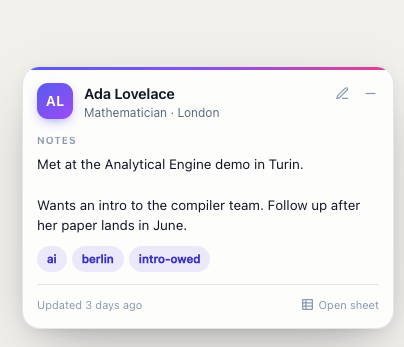
The panel open on a profile — notes, tags, and nothing else.
Built around two ideas: be there, and stay private
-
It is where you need it
Not in a separate app you have to remember to open.
-
It is private by default
Nothing opens on its own, so your notes are never on screen in front of whoever is standing behind you. The closed button shows no name, no note and no tags — only whether something exists.
-
Your data is yours
It lives either in Chrome's own synced storage or in a spreadsheet in your own Google Drive. There is no server in the middle, no account to create, and nothing is sent anywhere except to Google's own APIs with your own token.
-
It is searchable and exportable
Tag people however you like, then search every name, note and tag at once — from the panel, or from a full page listing everyone you have written about. Take the lot out as CSV or JSON whenever you want.
-
It notices when people move
Open somebody's profile and roloNotes quietly checks whether their photo or employer has changed, and tells you when it has.
One button, two states
The button sits on the LinkedIn page itself, in the top-right corner, just under LinkedIn's nav bar. It is not a toolbar popup — clicking the extension's icon only opens and closes it.
Nothing opens by itself — the window only appears when you click. Write, tag and
save with Cmd/Ctrl+Enter; the tag box suggests tags you have used
before as you type.
Chrome's storage, or a spreadsheet you own
Two choices, switchable at any time from the extension's options page: Chrome's own synced storage (the default — nothing to set up, follows you to your other machines, capped at 100KB / 512 people), or a Google Sheet in your own Drive that the extension creates and manages (no size limit, and you can open and edit it by hand).
Connecting the sheet is one button: Chrome asks whether to let roloNotes reach Google, Google asks whether to let it create the file, and that is the whole setup. Switching between the two copies your notes across and deletes nothing.
One click, then it just works
From the Chrome Web Store, in Chrome or any Chromium-based browser (Brave, Edge, Arc…). There is nothing to sign into and no account to create — it works the moment it is installed.
Private, by design
There is no server in the middle. Your notes live in your own Chrome sync storage or your own Google Drive — never on someone else's server, and never sent anywhere except to Google's own APIs with your own token.
No tracking, no telemetry, no crash reporting, no ads, and no code downloaded at runtime. The full detail is in the privacy policy.